iPhone storage full? How to get more storage – photos first
Short answer
When your iPhone storage is full, open Settings → General → iPhone Storage to see what uses the space. On most phones Photos is the largest item, so start there: delete large videos, screenshots and bad shots, then empty “Recently Deleted”. Make sure “Optimize iPhone Storage” is on if you use iCloud Photos, offload unused apps and remove old message attachments.
Free up storage on an iPhone
- Check what uses the space. Open Settings → General → iPhone Storage and wait for the bar to load.
- Clean up photos and videos. Delete large videos, screenshots and unwanted photos – a swipe app like Gallery Guru makes this fast.
- Empty Recently Deleted. Photos → Collections → Recently Deleted → Select → More (•••) → Delete All.
- Optimize iCloud Photos. Settings → [your name] → iCloud → Photos → iPhone Storage → Optimize iPhone Storage keeps small versions on the phone.
- Offload apps and clear messages. Offload unused apps and review large attachments in Messages.
First: see what actually uses the space
Open Settings → General → iPhone Storage. The bar at the top shows the split between Apps, Photos, Media, Messages, iOS and System Data; below it, every app with its size. For most people, Photos is the biggest block – often tens of gigabytes.
1. Clean up your photos and videos
Photos and videos are the biggest lever, and nobody else can decide which ones you need. The trick is to make deciding fast:
- Videos first. A minute of 4K video at 60 fps takes about 400 MB (Apple’s own figure in the camera settings) – as much as a hundred photos. Find and delete large videos.
- Screenshots. Usually hundreds, almost all disposable. Delete them in bulk.
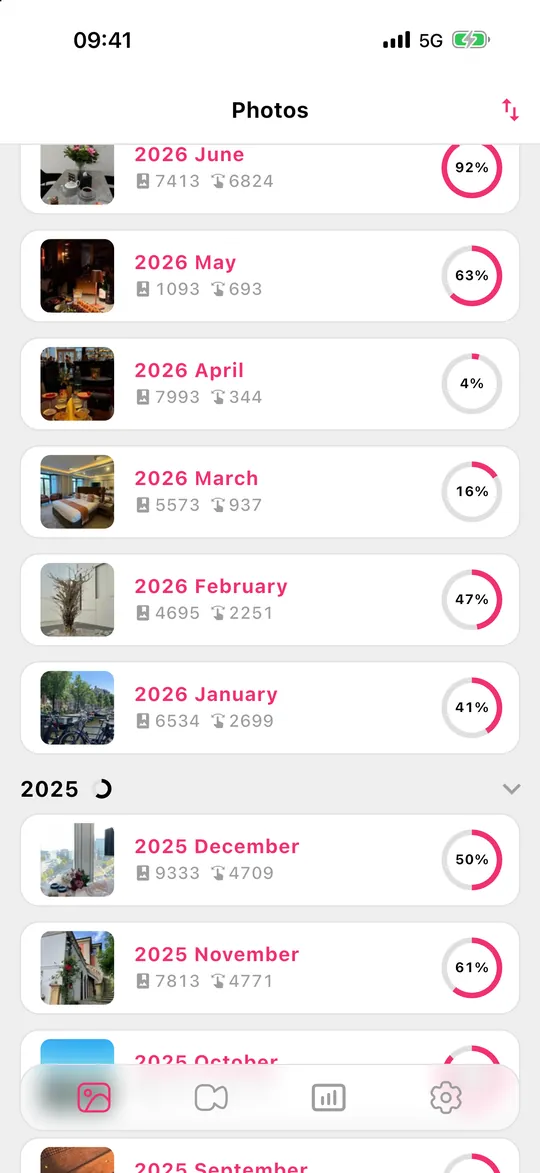
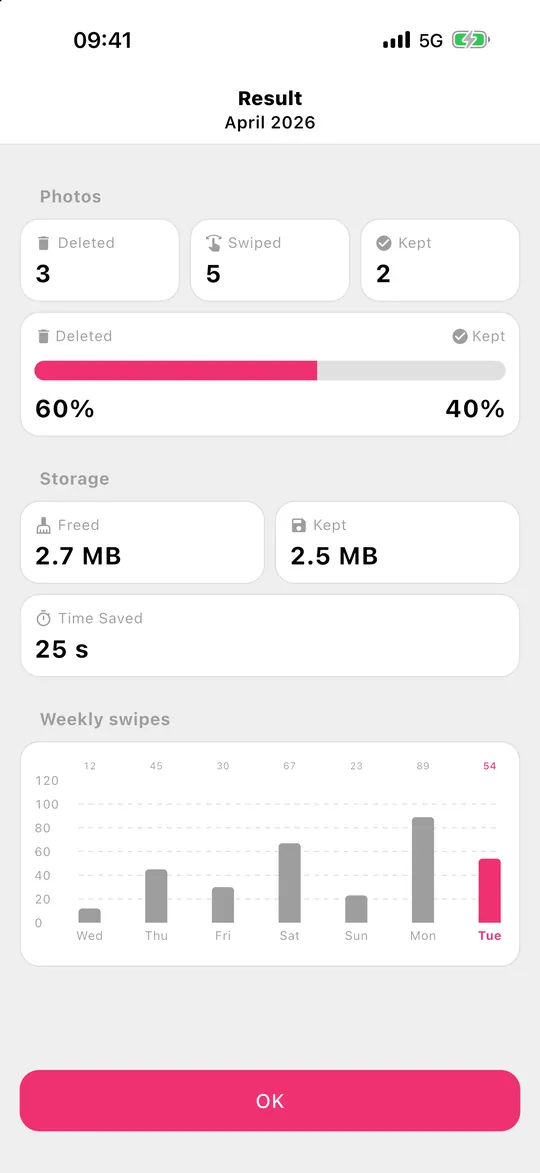
- Month by month. Gallery Guru splits your library into months and lets you swipe left to delete and right to keep. Small chunks you can actually finish, a review grid before anything is deleted, and statistics that show how much you freed.
2. Empty “Recently Deleted”
Deleted photos keep using space for 30 days. Open Photos → Collections → Recently Deleted, unlock with Face ID, then Select → ••• → Delete All. Only do this once you are sure – it cannot be undone.
3. Check “Optimize iPhone Storage”
With iCloud Photos, Settings → [your name] → iCloud → Photos → iPhone Storage → Optimize iPhone Storage keeps full-resolution originals in iCloud and smaller versions on the phone. It needs enough iCloud storage for your whole library – if iCloud is full too, read iCloud storage full.
4.–9. Everything else that fills an iPhone
- Offload unused apps: Settings → General → iPhone Storage → tap an app → Offload App. Documents and data stay.
- Message attachments: in iPhone Storage tap Messages → Review Large Attachments.
- Keep messages for 1 year instead of forever: Settings → Apps → Messages → Keep Messages.
- Downloaded music, podcasts and series in their apps.
- Browser and app caches: some apps (social media, messengers) store gigabytes of cache – deleting and reinstalling them clears it.
- Record videos smaller: Settings → Camera → Record Video, e.g. 1080p at 30 fps uses about 60 MB per minute instead of 400 MB for 4K at 60 fps.
Storage still full after deleting everything?
If you deleted a lot and the bar in iPhone Storage barely moved, check these in order:
- Recently Deleted. Deleted photos and videos keep using space for 30 days. Empty the album (Photos → Collections → Recently Deleted → Select → More (•••) → Delete All).
- Give it time. iPhone Storage recalculates in the background. Leave the screen, wait a few minutes or restart the iPhone, then check again.
- Hidden photos. Photos in the Hidden album still count. Open Collections → Hidden (under Utilities) and clean it up too.
- Message attachments. Photos and videos sent in chats are stored in Messages, not in Photos – deleting them from your library doesn’t touch them.
- System Data. Caches and temporary files that iOS manages itself; it usually shrinks after a restart or when space runs low.
What doesn’t help
“Phone cleaner” or “booster” apps that promise to speed up the phone or clean junk can’t do that on an iPhone – iOS doesn’t let apps delete other apps’ files. On an iPhone, the space you can free is your own content: photos, videos, apps, messages and downloads.
Frequently asked questions
What is “System Data” in iPhone storage?
System Data (formerly “Other”) contains caches, logs and temporary files. iOS manages it itself and shrinks it when space runs low. Restarting the iPhone sometimes reduces it; there is no button to delete it directly.
Will deleting photos speed up my iPhone?
Only if the storage is almost completely full. iOS needs free space for updates, caches and temporary files – with less than a few gigabytes free, apps can become slow. Freeing space fixes that.
Can I buy more storage for my iPhone?
Not for the phone itself – the built-in storage can’t be upgraded. What you can buy is iCloud storage: with iCloud Photos and “Optimize iPhone Storage” turned on, the full-size photos live in iCloud and the phone keeps smaller versions, which frees local space. Cleaning up photos you don’t need shrinks both. iCloud storage explained.
How much free space should an iPhone have?
A good rule is to keep at least 10% or a few gigabytes free, and more before a major iOS update, which needs several gigabytes to install.
Can I free up space without deleting photos?
Yes: turn on Optimize iPhone Storage with iCloud Photos, offload apps, clear message attachments. But if Photos is the biggest item, deleting the photos and videos you don’t need is the only way to shrink it permanently – also in iCloud.