How to organize photos on iPhone (and clean them up first)
Short answer
To organize photos on an iPhone, clean up first, then sort what is left. Delete screenshots, bad shots and old videos, then use Apple’s built-in tools: Favorites for the best photos, albums for topics, People & Pets and the Map for faces and places, and Hidden for private photos. A swipe app like Gallery Guru speeds up the clean-up: one month at a time, swipe left to delete, right to keep, and add keepers to an album as you go.
Organize photos on iPhone
- Delete what you don’t need. Remove screenshots, blurry or repeated shots and old videos – month by month is easiest, for example with a swipe app like Gallery Guru.
- Mark your best photos as favorites. Tap the heart on a photo to add it to Favorites.
- Create albums for topics. Select photos, tap More (•••) → Add to Album → New Album, or create one in Collections → Albums.
- Name people and check places. In Collections → People & Pets, name the faces you care about; the Map shows photos by location.
- Hide private photos. Select photos, tap More (•••) → Hide. They move to the locked Hidden album.
Step 1: Clean up before you organize
Sorting 20,000 photos into albums is hopeless if half of them are screenshots, burst shots and five takes of the same sunset. Deleting first makes everything after it faster – and frees storage on the way.
- Screenshots: Photos → Collections → Media Types → Screenshots, then Select and drag across. Delete all screenshots.
- Exact duplicates: Collections → Duplicates → Merge (the album only appears if the Photos app found any).
- Large videos: the biggest storage hogs. Find and delete large videos.
- Everything else: the bad, the blurry and the “why did I take this?” shots – these need a human decision, one photo at a time.
Clean up month by month with Gallery Guru
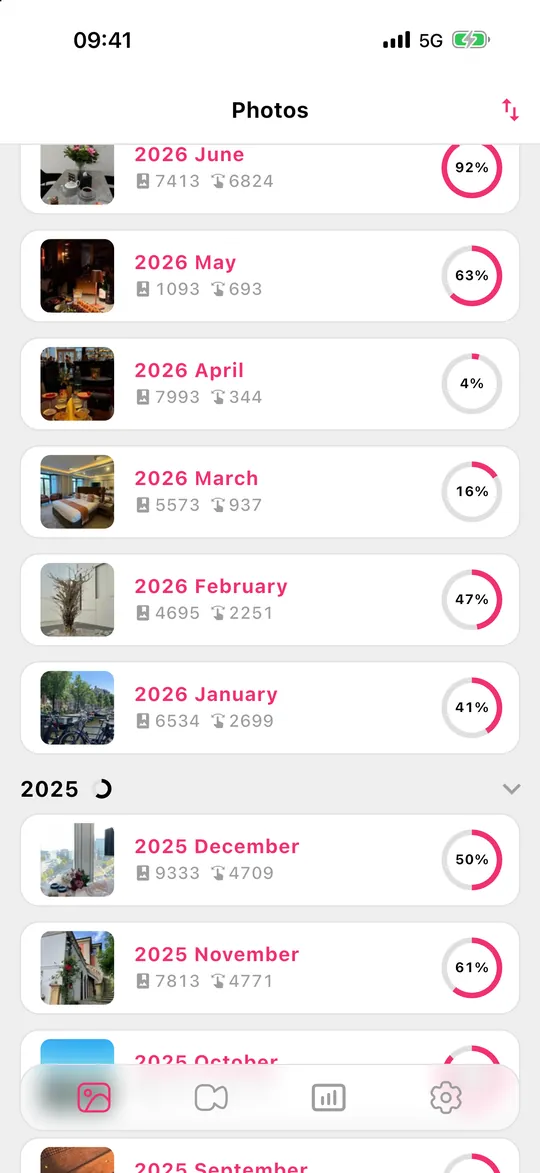
For the photo-by-photo part, Gallery Guru turns the camera roll into small chunks you can finish:
- Your library is split into months, each with a progress ring. Sort them by date, number of photos or progress and start where it matters.
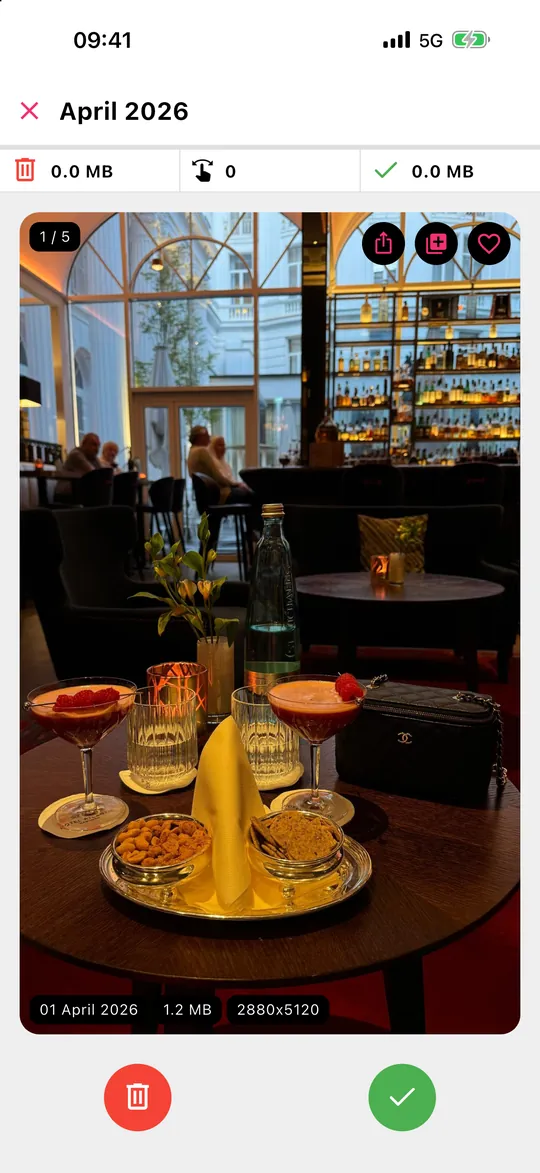
- Swipe left to delete, right to keep. Each card shows date, file size and resolution.
- See a keeper that belongs somewhere? Tap the heart to make it a favorite or the album button to add it to one of your albums – organizing and cleaning in the same pass.
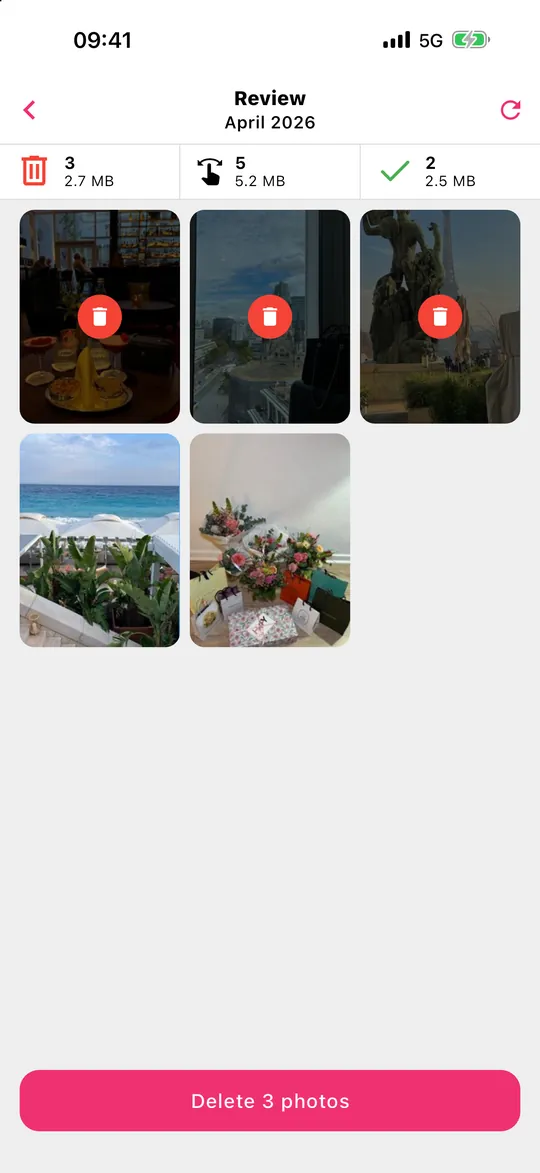
- Tap Review, rescue anything you swiped left by mistake, then delete everything at once.
Nothing is uploaded – Gallery Guru works offline, on the device. Deleted items go to “Recently Deleted” for 30 days. It is free with 50 swipes a day; Pro removes the limit.
Step 2: Browse by Years and Months
You don’t need to sort photos by date – the Photos app already does. At the bottom of the library grid, switch between Years, Months and All. Months groups your photos into events and trips, which is the quickest way to find something when you remember roughly when it happened. The sort and filter button lets you show only favorites, edited photos, videos or screenshots, or hide screenshots from the grid.
Step 3: Favorites for the photos that matter
Tap the heart on any photo to add it to the Favorites album in Collections. It is the lightest way to organize: no album to choose, and you can filter the whole library to favorites in one tap. A good habit is to favorite the two or three best shots of each event while you clean up.
Step 4: Albums and folders for topics
Albums are for collections that cut across dates: “Recipes”, “Kids’ drawings”, “Car”, “Apartment documents”.
- New album: Collections → Albums → + → New Album, give it a name and pick photos.
- Add photos later: in the library tap Select, choose the photos, tap ••• → Add to Album.
- Folders: Collections → Albums → + → New Folder groups albums, e.g. one folder per year of travel.
A photo in an album is not a copy – it uses no extra storage, and deleting it from the library removes it from every album.
Step 5: People, pets and places – organized for you
The Photos app recognizes faces on the device. Open Collections → People & Pets, tap a face and add a name; from then on new photos of that person land there by themselves. Photos with location data appear on the Map in Collections, and Trips and Memories collect events automatically. Search also helps: type a name, a place or a thing like “beach” or “dog”.
Step 6: Hide private photos
Select photos, tap ••• → Hide. They disappear from the library and land in Collections → Hidden, which is locked with Face ID or your passcode. Hidden photos still use storage and still sync with iCloud Photos.
Keep it organized: a monthly routine
The trick is not to let it pile up again. Once a month, take five minutes for the month that just ended: delete the clutter, favorite the best shots, drop the rest into albums. In Gallery Guru each finished month shows a full progress ring, so you always know where you left off – and reminders can nudge you.
What Gallery Guru doesn’t do
Gallery Guru doesn’t detect duplicates, similar or blurry photos automatically, and it doesn’t sort photos into albums by itself – you decide, it makes deciding fast. For exact duplicates use the free Duplicates album in Photos; for people and places, Apple’s own collections are the best tool. Still choosing an app? See the best apps to delete photos compared.
Frequently asked questions
What is the best way to organize photos on iPhone?
Delete what you don’t need first, then use Favorites for your best photos, albums for topics and People & Pets for faces. Dates and places are organized automatically. Doing it one month at a time keeps the job small enough to finish.
How do I clean up my iPhone photos fast?
Start with screenshots and large videos (Collections → Media Types), merge exact duplicates (Collections → Duplicates), then go through the rest month by month. A swipe app like Gallery Guru makes each decision a single gesture and shows a review grid before anything is deleted.
Can I put photos in folders on iPhone?
Yes, but folders hold albums, not photos. Create albums for your photos, then group them: Collections → Albums → + → New Folder.
Does adding a photo to an album duplicate it?
No. An album only points to the photo in your library, so it uses no extra space. If you delete the photo from the library, it disappears from all albums.
Can I sort iPhone photos by date?
The library is always in date order. Switch to Years or Months at the bottom of the library to jump through time. Inside an album you can choose oldest or newest first in its sort options.
Do albums and favorites sync to my other devices?
Yes, with iCloud Photos turned on, albums, folders, favorites and hidden photos sync to your iPhone, iPad, Mac and iCloud.com.